
How to Recover a Delayed Project: A Practical Recovery Plan
Bring a delayed project back under control with a practical recovery plan. Learn how to find the causes, review the critical path and choose…
Read insightExplore 10 project management workflows you can automate, from task assignment and deadline reminders to approvals, reporting and handover, with practical examples.
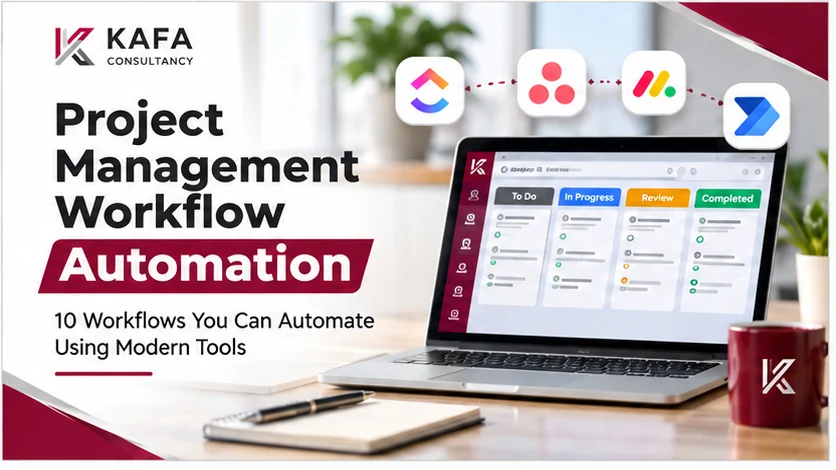
A project manager receives a new client request. They create a task, assign it to a team member and send an email explaining what needs to happen.
The next morning, they check whether the task has started. Later, they remind the team about the deadline. At the end of the week, they collect progress updates for the project report.
None of these activities is particularly difficult. But when the same steps are repeated across dozens of tasks and several projects, they take considerable time.
This is where project management workflow automation can help.
Modern project management tools can create tasks, assign responsibilities, send reminders, route approvals and update project records when certain conditions are met.
These features can reduce routine administration and help teams follow consistent processes.
In this guide, we’ll look at 10 project management workflows you can automate. We’ll use examples from IT, engineering, digital agencies and business operations. We’ll also explain how to choose the right tools and avoid common automation mistakes.
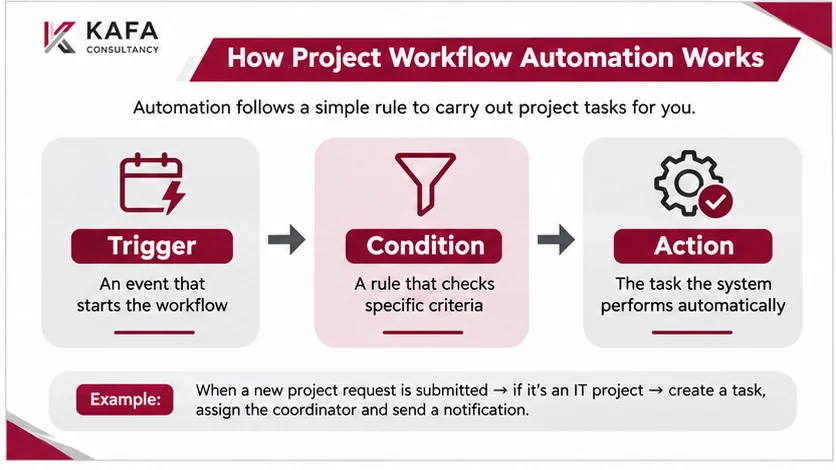
Project management workflow automation uses software to carry out defined actions when a particular event or condition occurs.
Most simple automations follow three elements:
Trigger → Condition → Action
For example:
The software follows the rule without someone having to repeat each step manually.
Tools such as ClickUp, Asana and monday.com support trigger-based automation.
Some workflows can also connect different applications through tools such as Microsoft Power Automate.
The aim is to make routine work more consistent and easier to manage.
Businesses often receive project requests through emails, messages, calls and meetings.
When information arrives through several channels, important details can be missed.
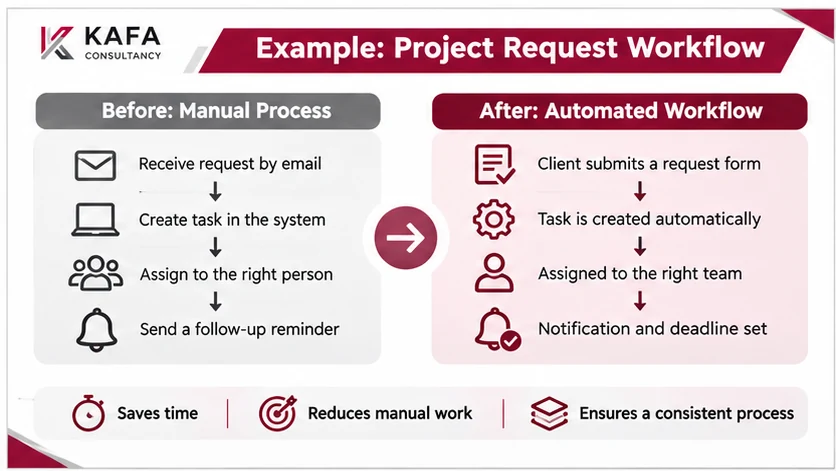
A standard request form can make the process more consistent.
An IT service company receives requests for website updates, system installations and software support.
Instead of creating tasks manually, it introduces an online request form.
The workflow looks like this:
Request submitted → Task created → Request classified → Coordinator notified
The form captures the client’s name, project type, description, preferred deadline and supporting documents.
The system creates a task in the appropriate project list.
A coordinator can then review the request, confirm the scope and decide what should happen next.
Useful tools: ClickUp Forms and Automations, Asana Forms and Rules, or monday.com.
Main benefit: Fewer lost requests and a consistent record of incoming work.
Automation should capture the request. It should not automatically promise a delivery date before the team has assessed the work.
Assigning tasks is another repetitive activity.
A project manager may spend time moving tasks between lists and allocating work to different departments.
Simple assignment rules can handle some of this activity.
A marketing agency manages website design, social media and content projects.
When a task enters the Design stage, it is assigned to the design coordinator.
When the task moves to Content Review, the content manager receives a notification.
A possible rule is:
When status changes to Content Review → Assign content manager → Send notification
The project manager can still change the assignment when needed.
This works best when responsibilities are clearly defined.
If team capacity changes frequently, the project manager should check workloads before assigning additional work.
Useful tools: ClickUp, Asana and monday.com.
Main benefit: Clearer ownership and fewer manual handovers.
Many projects involve several departments.
An engineering design may need technical approval before procurement starts. A website feature may need testing before it can be released.
Delays often happen when one team finishes its work but forgets to inform the next team.
Automation can improve these handovers.
A project uses the following stages:
Design → Review → Approved for Procurement → Procurement → Installation
When a drawing receives the Approved for Procurement status, the procurement coordinator is notified.
A linked procurement task can also be created.
This reduces the need for manual follow-up.
However, the automation must only respond to a valid approval.
Changing a status should not replace the technical review or authorisation process.
The team should define which person can approve the drawing and what evidence must be recorded.
Useful tools: ClickUp or Asana, with additional integrations where required.
Main benefit: Faster communication between departments.
Project managers spend significant time checking deadlines.
They remind team members about approaching dates and follow up when activities remain incomplete.
A reminder workflow can handle much of this work.
A software project contains several tasks with agreed deadlines.
The team creates these rules:
For example:
Critical task overdue → Notify project manager → Request revised completion forecast
The project manager can then review the delay and its effect on other activities.
monday.com supports date-based reminder automations. Other tools offer related options, depending on configuration.
The reminder should help the team respond to a problem.
Sending repeated notifications without addressing the cause of a delay can become distracting.
Main benefit: Better deadline visibility and earlier follow-up.
Approval workflows are common in engineering, construction, IT and professional services.
A document may need to pass through several reviewers before the next activity can begin.
When approval requests are handled through email, it can become difficult to identify the latest version and final decision.
An engineering team prepares a technical drawing.
The workflow is:
Drawing submitted → Reviewer notified → Approval recorded → Procurement informed
If the reviewer rejects the drawing, the system returns it to the design team with comments.
If the drawing is approved, the record is updated and the relevant people are notified.
Microsoft Power Automate can support structured approval requests and record responses.
For projects involving technical drawings, contracts or regulated work, approval authority must remain with the authorised person.
Automation can manage the routing and record keeping. It should never bypass required checks.
Useful tools: Microsoft Power Automate, SharePoint and suitable project management integrations.
Main benefit: Clear approval records and fewer delays caused by missing communication.
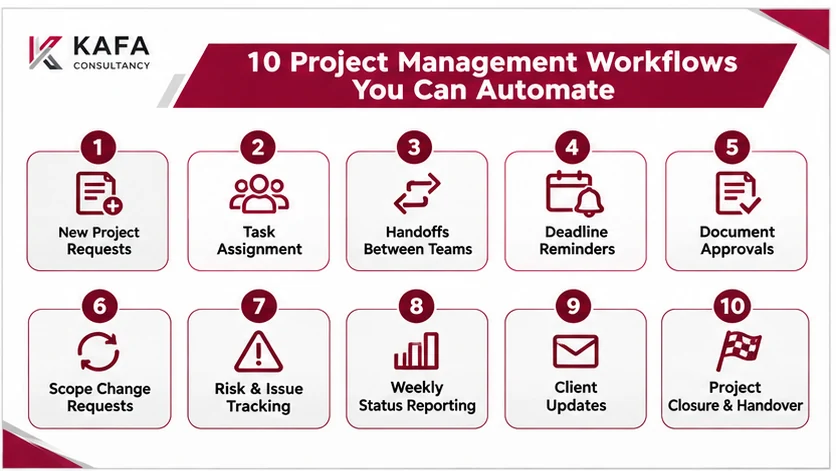
Scope changes can affect the project budget, schedule and resources.
A client might ask for another website feature. An engineering team may propose a design modification.
These requests should be recorded and assessed before the team commits to additional work.
A change request workflow can make the process easier to follow.
A client submits a request for a new booking feature.
The system creates a change request with a unique reference number.
It then assigns the request to the project manager for assessment.
A simple workflow is:
Change submitted → Impact assessment → Approval decision → Implementation
The change request can include fields for estimated cost, schedule impact, risks and approval status.
Once the authorised person records the decision, the relevant team receives an update.
The software can track the process, but it should not independently approve changes to contractual scope or funding.
For a detailed guide, read How to Manage Scope Changes Without Losing Control of Your Project.
Main benefit: Better traceability and fewer uncontrolled changes.
A risk register helps the project manager identify potential problems before they affect delivery.
However, the register loses value when it is rarely reviewed.
Automation can help keep risk information visible.
An engineering project depends on equipment from an external supplier.
The project manager records a risk related to late delivery.
The risk includes an owner, a review date and a response plan.
A workflow could be:
Risk review date reached → Notify owner → Request updated assessment
If the risk is marked High, the project manager can receive a notification.
If the equipment delivery is missed, the team should record the actual problem as an issue and assess its effect on the schedule.
The system can also create an action for the procurement team.
Automation should support risk monitoring. It cannot determine the true risk level without reliable information and professional judgement.
For more detail, see Project Risk Management: How to Identify, Assess and Control Risks.
Main benefit: More consistent risk reviews and clearer accountability.
Weekly project reports can require significant administrative effort.
A project manager collects updates from several team members, checks progress and prepares a summary for management.
Some of this information can be gathered automatically.
A consultancy manages several client projects.
Each project contains tasks with owners, due dates, priorities and current statuses.
A dashboard can display:
A scheduled workflow can also remind task owners to update their records before the reporting deadline.
The project manager reviews the information and adds an explanation of important changes.
For example, a dashboard may show that eight tasks are overdue.
It cannot automatically explain whether those tasks affect the final project completion date unless the required schedule logic and data are available.
Useful tools: ClickUp dashboards and automations, monday.com dashboards, or reporting flows connected to Microsoft tools.
Main benefit: Less time collecting data and more time analysing performance.
Clients often want regular information about project progress.
They may ask whether a deliverable is ready, whether a milestone has been completed or when their approval is required.
Automation can handle routine notifications.
A digital agency manages website projects for multiple clients.
When a deliverable moves to Ready for Client Review, the client receives a notification with the review link.
A possible workflow is:
Deliverable ready → Internal check completed → Client notified → Feedback recorded
The internal check matters.
Without it, the system could send unfinished work to the client simply because someone selected the wrong status.
Automated messages should use clear language and contain only information the recipient is authorised to see.
Sensitive project details should not be sent through unapproved integrations.
Main benefit: More consistent client communication.
For complex issues, discussions about delays, costs and changes should still involve the project manager.
The final stage of a project often includes several administrative tasks.
The team needs to confirm acceptance, organise documents, close open activities and hand over the completed work.
A closure checklist can be created automatically when the project reaches the appropriate stage.
Once the system passes final acceptance, a project closure workflow creates tasks for:
The project manager verifies that all required activities are complete before formally closing the project.
Main benefit: More consistent handovers and fewer forgotten closure tasks.
Automation can create the checklist and track its progress. Final acceptance and closure still require the proper authority.
The right software depends on your existing systems, team size and workflow requirements.
| Tool | Where it may fit |
|---|---|
| ClickUp | Task management, custom statuses, forms, assignments and workflow automation |
| Asana | Team coordination, request intake, task routing and project rules |
| monday.com | Board-based workflows, reminders, status changes and notifications |
| Microsoft Power Automate | Approvals and workflows connecting supported Microsoft and other business applications |
There is no need to use every platform.
A small team may be able to automate several processes within its existing project management software.
A larger organisation may need integrations between project management, finance, document management and communication systems.
Check the available features, permissions, subscription limits and integration costs before selecting a tool.
Begin with one process that creates repeated administrative work.
For example, a business may receive 30 client requests each week.
The project manager manually copies the information into the task management system, assigns the requests and sends acknowledgement messages.
This could be a good starting point.
Follow these five steps.
Write down what happens from the first request to the final outcome.
Identify who performs each activity and which information is required.
Look for tasks that follow clear rules.
Creating records, sending reminders and routing requests are often suitable candidates.
Activities requiring technical judgement, negotiation or formal authority may need human review.
Specify the trigger, conditions and actions.
For example:
When a completed request form is submitted → Create a task → Assign the coordinator → Send acknowledgement
Use sample requests to check that the workflow behaves correctly.
Test missing information, duplicate submissions, rejected approvals and incorrect status changes.
Also check whether an automation could trigger itself repeatedly.
After launch, review the workflow regularly.
Check whether it saves time, creates errors or sends unnecessary notifications.
Adjust the rules when project responsibilities or business requirements change.
For a broader implementation approach, read How to Digitalise Your Project Management Workflows.
Automating an unclear process. If responsibilities and workflow stages are confusing, automation may make those problems harder to manage.
Creating too many notifications. Teams may start ignoring alerts when every small update generates a message.
Removing important approvals. Some decisions require technical review, client authorisation or management approval.
Using unreliable project data. Automated reports are only useful when task statuses, dates and other records are accurate.
Ignoring access and security. Automation may transfer documents and information between systems. Permissions should be reviewed before enabling integrations.
Failing to monitor automations. Rules can stop working after system changes, expired connections or subscription limits.
A good workflow should have a clear owner who can review its performance and resolve problems.
It is the use of software rules to perform defined project tasks, such as creating records, assigning work, sending reminders and managing approval requests.
Common examples include request intake, task assignment, deadline reminders, approval routing, change request tracking, risk review notifications and status reporting.
Yes. Small businesses can begin with simple workflows that reduce repeated administration, even when they manage only a few projects.
ClickUp supports trigger-based automation for tasks, statuses, assignments and other workflow activities. The available features depend on the workspace setup and subscription.
Some administrative work can be automated. Project managers are still needed for planning, risk assessment, stakeholder decisions, problem-solving and governance.
Project management involves many repeated activities.
Creating tasks, assigning work, sending reminders and updating records all take time. When these processes are handled manually across several projects, they can become difficult to manage.
Project management workflow automation can make routine work more consistent.
Start with the processes that your team repeats most often.
Choose simple rules, test them carefully and make sure people remain responsible for important decisions.
You can introduce more advanced workflows once the basic processes are working reliably.
The goal is to help your team spend less time on administration and more time delivering projects.
At KAFA Consultancy, we help businesses improve project management processes and implement practical digital workflows.
Our services include workflow design, ClickUp implementation, task management systems, reporting dashboards, process automation and project management support.
Whether you’re starting with a simple task board or connecting several business processes, we can help you design a system that suits the way your team works.
Explore KAFA Consultancy’s Project Management & Automation Services.
Bring a delayed project back under control with a practical recovery plan. Learn how to find the causes, review the critical path and choose…
Read insightLearn how to manage project scope changes with a practical change control process, impact assessment, approval workflow and change request example.
Read insightCompare Agile, Waterfall and Hybrid project management with practical examples. Learn their differences, advantages and how to choose the right approach.
Read insight